Canva in ChatGPT: Make Designs and Videos From a Chat
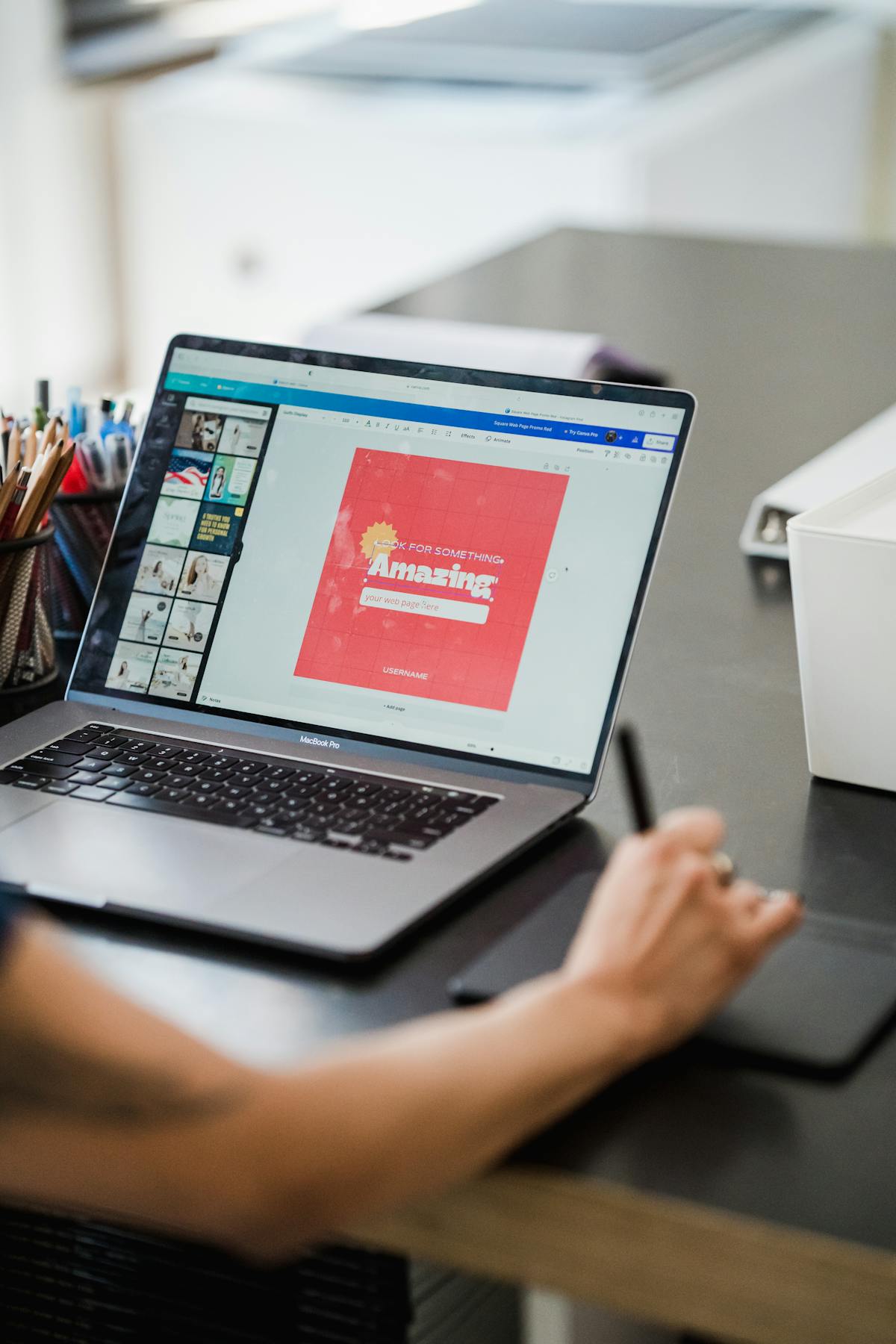
You are halfway through a conversation with an AI assistant, planning a sale or a school event, when you realise you need a poster to go with it. Until now that meant copying text into another app. With Canva in ChatGPT and Claude, you can keep typing and get an editable design back in the same chat.
On November 23, 2026, Canva announced a batch of upgrades to this connector in its newsroom post, Campaign-ready video generation, Magic Layers and several new ways to create with Canva + AI assistants. Here is what changed, what it means for everyday users, and how to switch it on.
What Canva in ChatGPT and Claude Actually Does
The Canva connector lets an AI assistant create and edit Canva designs on your behalf. You describe what you want in plain English, and the assistant hands back a real Canva design you can keep editing, not a flat picture.
According to Canva, millions of people already use its connectors inside AI assistants, with presentations and social posts leading the way. The company lists ChatGPT, Claude, Google Gemini and Microsoft Copilot on its connector page, Design with Canva, right from your AI chat. Which features you get depends on the assistant, so treat the list below as a menu rather than a guarantee.
What's New This Week
Canva described these additions on November 23:
- Video from a brief. You can upload images and brand assets, describe the video you want, and Canva generates an editable one. Canva says it pairs models including Seedance 2.5 with templates chosen from your prompt, such as product demos and unboxings. Before anything is generated, you approve a timed breakdown of the plan.
- Magic Layers. A generated image becomes an editable Canva design, so text and objects can be moved around.
- Image generation and background removal. Create photos, illustrations, icons and stickers from a prompt, or lift a subject onto a transparent background.
- Editing in a side panel. In ChatGPT and Claude you can edit text, swap images and adjust layouts beside the chat, then open Canva in one click for advanced tools.
Good to Know Before You Try It
- Video is not available everywhere. Canva says video is available in ChatGPT and Claude "in select markets," and for Claude you need to be a paid subscriber.
- A free Canva account can connect. Canva's connector page says all Canva plans can connect to AI assistants, including Canva Free. Some features are limited by plan: Canva says resizing is for paid plans, and its connector page says Autofill and brand templates are Enterprise-only, while the newsroom post names Pro, Business, Education and Enterprise for Autofill. Check which applies to your account.
- Your assistant may need a paid tier too. Canva notes that your AI assistant may require its own paid plan to connect.
- Privacy basics. Canva says the assistant can only access Canva content you have permission to view, and that you can disconnect at any time.
How to Connect Canva in ChatGPT (or Claude)
Canva's FAQ describes the general steps. Exact screens vary by assistant.
- Open your AI assistant's settings and find its connectors (or apps) section.
- Choose Canva and follow the authorization prompts.
- Start a new chat and ask for a design.
To disconnect, go to your profile in Canva, open "Integrations connected to Canva," and choose Disconnect next to Canva AI Connector. You can also remove it from your assistant's settings. Your designs stay in Canva.
Connecting an assistant to your accounts is a trade-off worth thinking about each time. If you already read our piece on Gemini Google Wallet: Ask AI About Your Spending Safely, the same habit applies here: connect only what you need, and review what the assistant can see.
Three Prompts to Try
Canva's own examples show the pattern: say what you want, then ask for changes.
- "Make an Instagram post for the upcoming sale, then separate each visual and text element so I can rearrange the layout." (Canva's example for Magic Layers.)
- "Turn last lesson's presentation into a printable A3 poster." (Canva's example for resizing, a paid-plan feature.)
- "Create a 15-second unboxing video from this product photo." (Based on Canva's unboxing example; video availability is limited, as noted above.)
Review every result before you share it. AI drafts can misspell words, change a brand colour or drop a detail, and the approval step on video exists for a reason: read the production plan before you accept it.
Who Should Care
If you make social posts, flyers, slides or school materials, this removes a copy-and-paste step. If you rarely design anything, it is still a gentle way to get a first draft: ask in plain language, then fix the details in the Canva editor.
The lesson from this update is that AI assistants are turning into hubs that call other apps. That is convenient, but it is worth knowing which apps are connected and what each one can see.
My take
I have not tried Canva inside ChatGPT yet, so I am not speaking from experience here — but this is the kind of update I would actually use. Most of my design needs are quick ones: a post, a flyer, a slide. If I can describe what I want in the same chat where I am already planning, and get back something I can still edit, that removes the step I usually put off. I would still check every word before sharing anything, because AI drafts get details wrong, but as a starting point it sounds genuinely useful.
Your Turn
Would you rather start a design inside a chat, or open the design app first? Tell us which step in your current workflow you would most like an assistant to take over.


Comments
Post a Comment