How to Move Files to a New PC After Windows Dropped a Tool
If you are setting up a new computer, you may want to move files to a new PC without fuss. Until recently, Windows 11 had a built-in way to do that over your home network. Microsoft has now retired it, and the replacement works differently. Here is what changed and the options you still have.
What Microsoft Removed
Windows 11 included a feature called PC-to-PC Migration. During setup of a new computer, it could copy files and settings straight from your old PC to the new one, without the cloud in between.
Microsoft's own release notes for the September 22, 2026 preview update (KB5124010) say: "PC-to-PC Migration is no longer available." The same removal appears in the October 13, 2026 security update (KB5127648), which reaches everyone on supported Windows 11 versions. Microsoft points people to Windows Backup instead.
Microsoft has not said why it removed the tool, according to news coverage. Because the rollout was gradual, you may notice the change on a different date than a friend does.
Microsoft's guide to the feature is Transfer your files and settings to a new Windows PC.
The Official Replacement: Windows Backup
Microsoft points people to Windows Backup, which stores your data in the cloud through OneDrive. According to Microsoft's Windows Backup guide, it works like this:
- You sign in with a personal Microsoft account. Work or school accounts do not work with the Windows Backup app.
- You switch on the folders to back up: Desktop, Documents, Pictures, Videos and Music.
- You can also back up settings: installed apps, accessibility options, accounts and Wi-Fi details, personalization, language preferences and other Windows settings.
- On the new PC, you sign in with the same Microsoft account and choose to restore.
The catch is storage. Microsoft says a free account includes 5 GB of OneDrive space, with more available to buy. If your folders are larger than that, a full backup will not fit without paying or trimming files first. Microsoft also notes that personalization settings are not backed up when OneDrive storage is insufficient.
Move Files to a New PC Without the Cloud
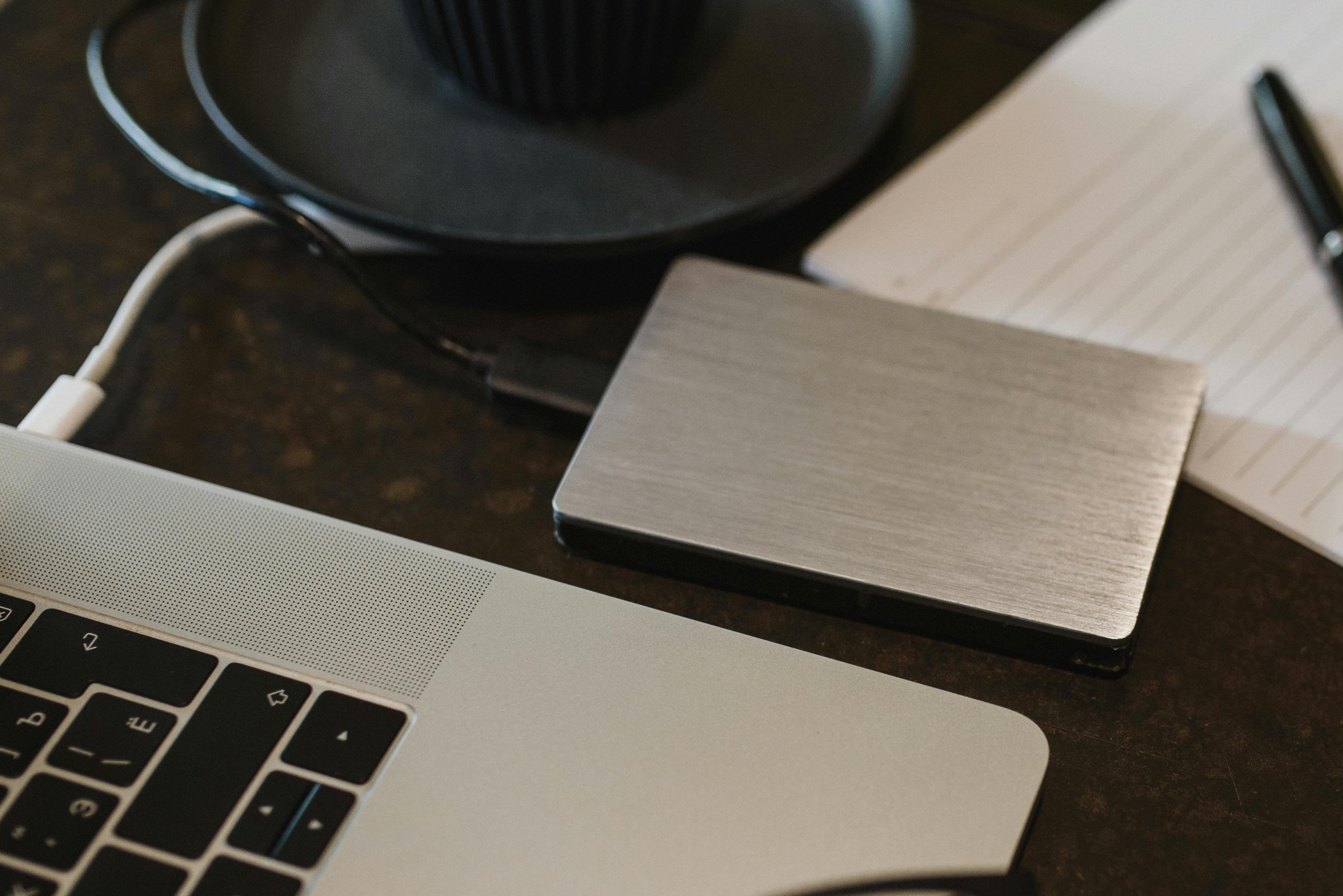
If you would rather not rely on OneDrive, the simplest low-tech route is still an external drive or USB stick. Microsoft documents this too, in its guide Move your files to a new Windows PC using an external storage device.
A practical checklist, whichever method you pick:
- Make a list before you start. Documents, photos, browser bookmarks, saved game files and anything stored outside the usual folders.
- Check the size. Right-click your main folders and look at their properties so you know whether 5 GB, 128 GB or 1 TB is the right target.
- Copy, do not move. Leave the originals on the old PC until you have opened a few files on the new one.
- Do not forget accounts. Passwords and logins are best handled by your password manager or each service's own sign-in, rather than by copying files.
- Wipe the old PC last. Only reset or recycle it once you are sure everything arrived.
What Windows Backup Does Not Replace
Windows Backup is useful, but it is built around a Microsoft account and a fixed set of folders. Files kept in other places, such as a second drive or a custom folder, need to be copied another way. Apps from the Microsoft Store can be restored from their pins, while for apps from elsewhere, Microsoft says you are directed to the web to download the installer.
What This Means for You
Two lessons stand out. First, features that ship with your operating system can change, so it is worth learning a method that does not depend on any one of them. Second, a backup is only a backup if you have tested a restore. Whichever route you choose, open a handful of files on the new PC before you retire the old one.
Conclusion
The easy network transfer is gone, but moving to a new computer is still straightforward. Use Windows Backup if your files fit in your OneDrive space, or copy them to an external drive if they do not. Either way, plan the move before you start.
Your turn: how do you usually move your files when you get a new computer: cloud, external drive, or something else?
Sources
- Microsoft Support, "September 22, 2026—KB5124010 (OS Builds 26300.9550, 26200.9550, and 26100.9550) Preview"
- Microsoft Support, "Transfer your files and settings to a new Windows PC"
- Microsoft Support, "Back up and restore with Windows Backup"
- Microsoft Support, "Move your files to a new Windows PC using an external storage device"
- BetaNews, "Microsoft has removed PC-to-PC file transfer from Windows 11, pushing OneDrive instead" (Nov 4, 2026)
- gHacks, "Microsoft Removes PC-to-PC Migration From Windows 11 and Points Users to OneDrive-Based Windows Backup" (Nov 3, 2026)


Comments
Post a Comment